Time & attendance

Know who's in, without asking.

Every clock-in, break and clock-out is recorded the moment it happens, from the mobile app, the web console or a biometric device. LGO People turns those punches into a daily register with lateness, half days and loss of pay already worked out.

Included from Basic · selfie check-in from Premium

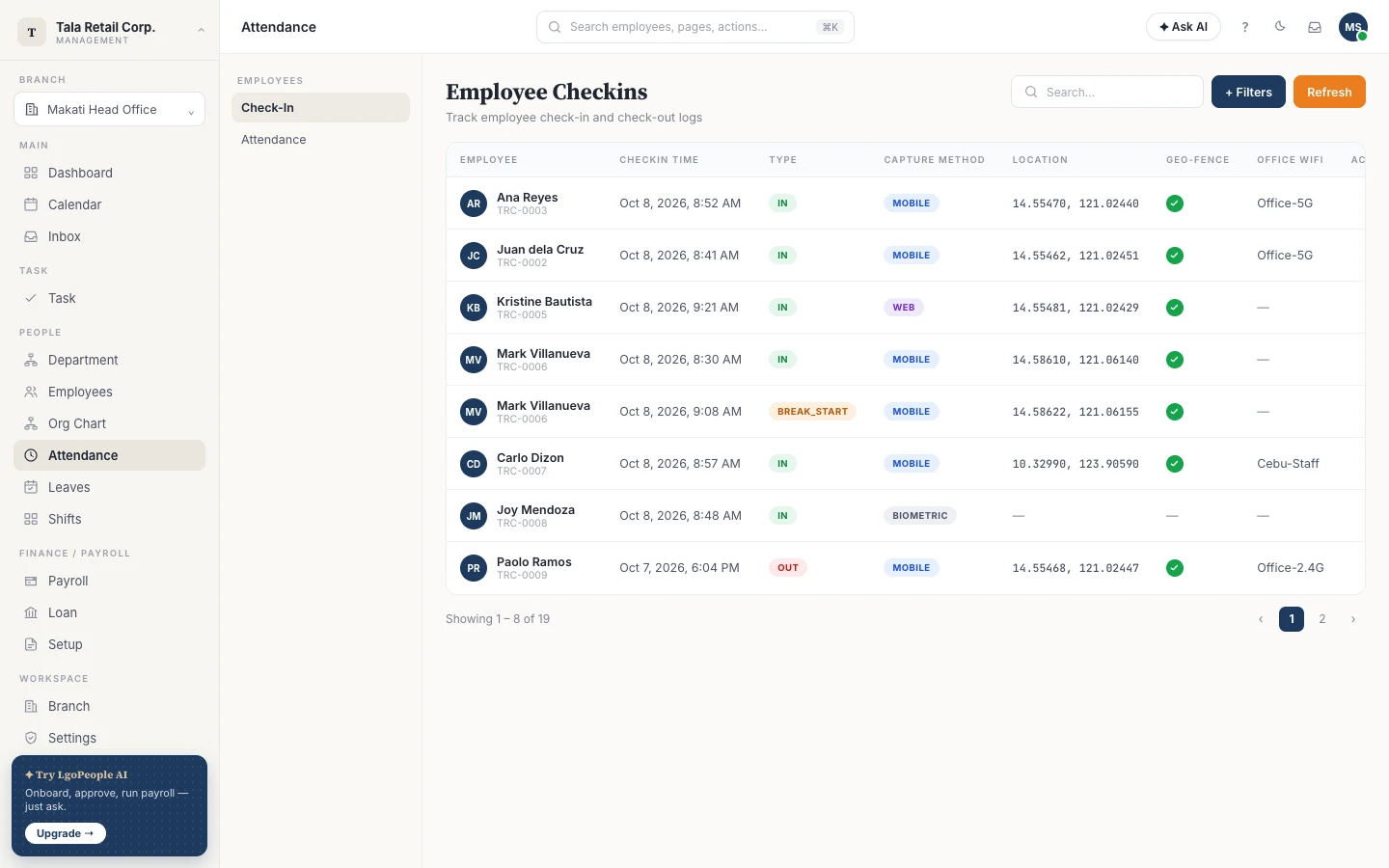
Check-in log listing each punch with its time, capture method, GPS location and geo-fence result

Highlights

Geo-fenced clock-in

Draw a radius around each site. A punch from outside it is refused on the spot.

Office WiFi check

List your office networks, and mobile punches must be made on one of them.

Selfie and face match

Employees take a selfie to clock in and out, matched against their profile photo.

Three ways to punch

Mobile app, web console with a webcam, or a biometric device. Set per employee.

Auto clock-out

Forgot to clock out? The day is closed at the shift's end time, so hours stay right.

Live check-in feed

The dashboard shows clock-ins, breaks and clock-outs as they happen, no refresh needed.

01

Every punch, with proof attached

The check-in log keeps every raw punch: who, what type, when and how it was captured, so a disputed day takes seconds to settle.

  • Location and GPS accuracy for every mobile punch
  • Whether it was inside the geo-fence, and on which office WiFi
  • IP address, notes, and the selfie taken at the time
  • Filter by date range or employee
Employee check-ins table with type, time, capture method and location columns

02

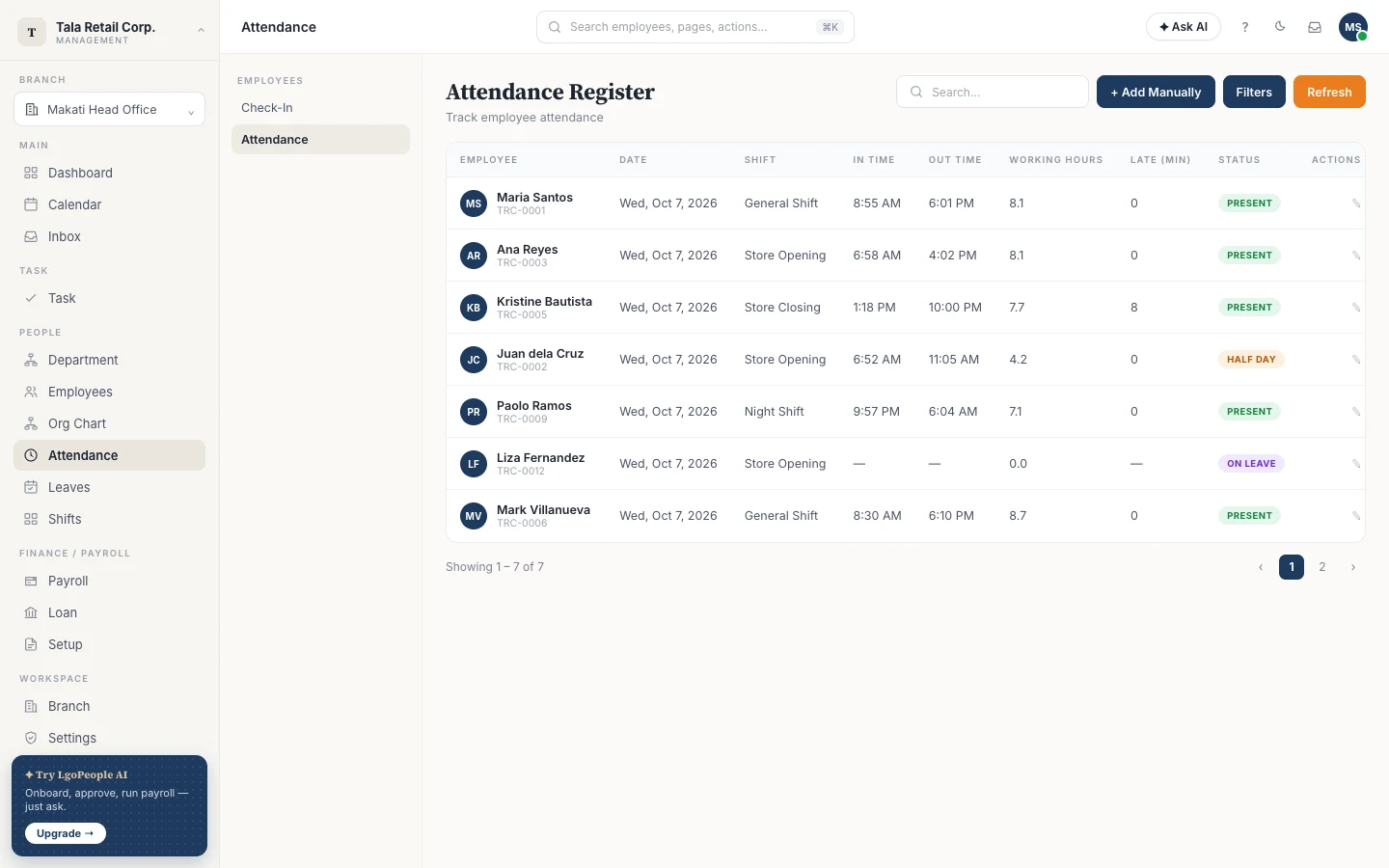
A register that does the maths

Once a day has a clock-in and a clock-out, LGO People writes one attendance row per employee, measured against their shift for that day.

  • Present, half day, absent or on leave, decided by your shift's thresholds
  • Working hours, break hours, late minutes and early-out minutes
  • Overtime hours from approved overtime requests
  • Loss-of-pay days flagged for payroll automatically

Example: on a 09:00–18:00 shift with no custom thresholds, under 2 h 15 m is absent and under 4 h 30 m is a half day.

Attendance register with in time, out time, shift and working hours for each employee

03

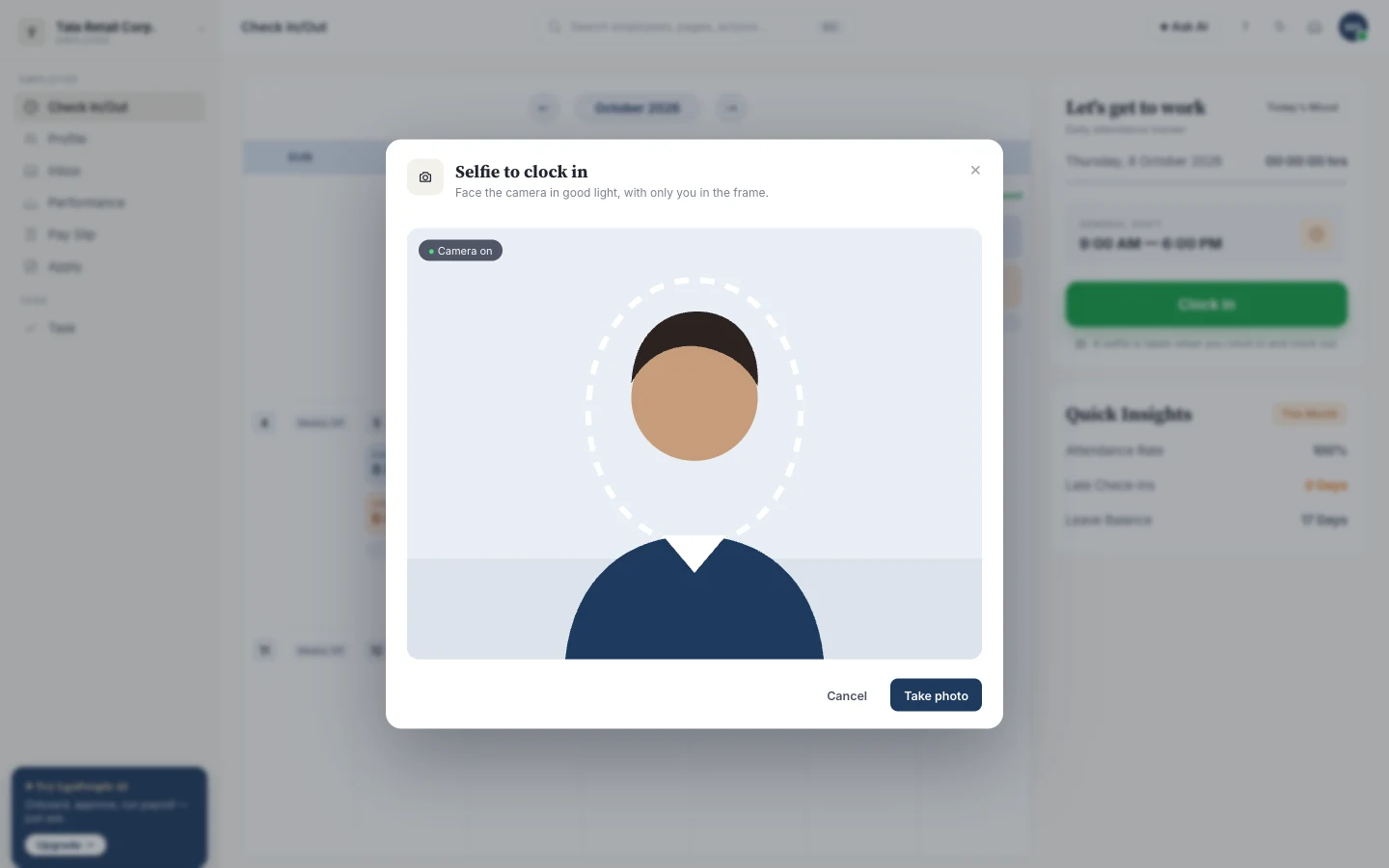
Selfie check-in on the web, too

When selfie clock-in is on, the employee console opens the computer's camera. Line up your face in the oval, take the photo, and clock in. Breaks never need a selfie.

  • Compared with the employee's profile photo when face verification is on
  • Clear reasons when a match fails, with an instant retake
  • Works with the phone's front camera in the mobile app
Selfie to clock in dialog with a face guide and a Take photo button

04

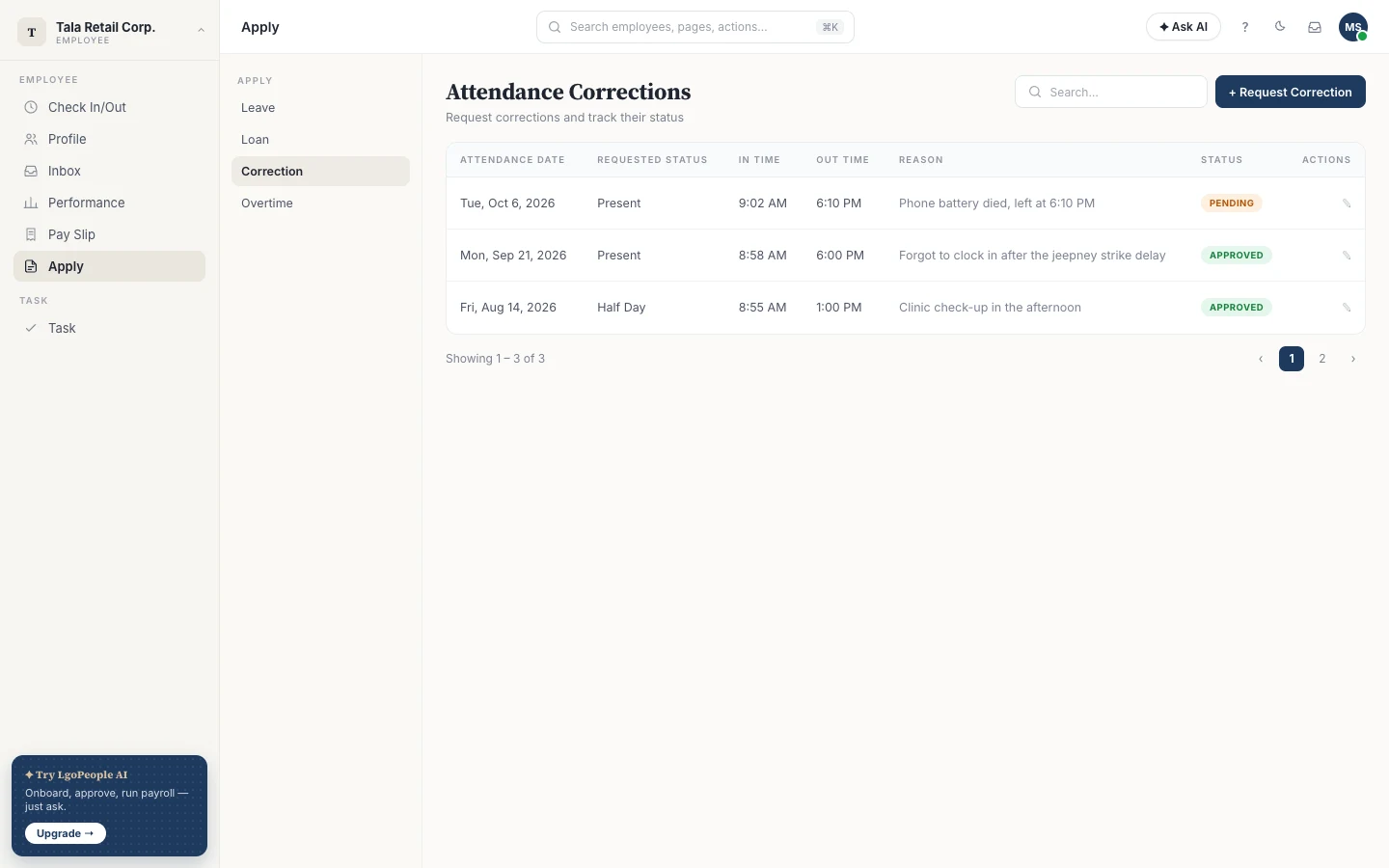
Fix mistakes without spreadsheets

Employees request attendance corrections and overtime from the app. Their department head and approvers decide from the inbox, and the register updates itself.

  • Correct a status, an in time or an out time, or add a missing day
  • Approved overtime adds overtime hours to that day
  • Hours between 22:00 and 06:00 are recorded as night hours for night differential
Attendance correction requests list in the employee console

05

Backfill days in bulk

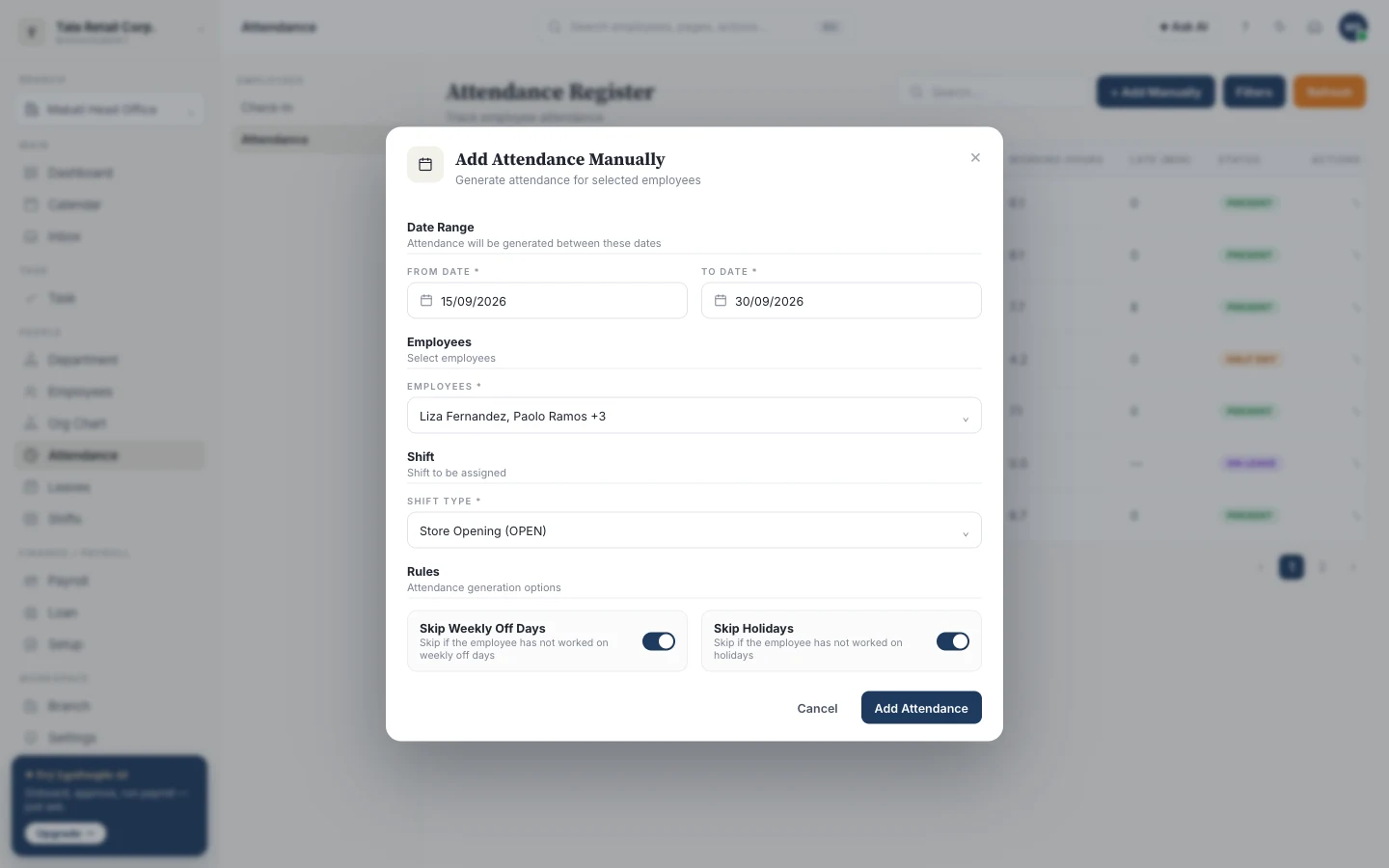
For staff on manual attendance, or days from before you switched, add attendance for many people and dates at once.

  • Pick a date range, employees and shift type
  • Skip weekly offs and holidays automatically
  • Payroll-paid days are locked so history can't drift
Add attendance manually dialog with date range, employees and rules

Try it

Four checks. One tap.

When an employee taps Clock In, the app checks where they are, which network they're on and who's holding the phone. Switch a check off to see what they'd be told.

Conditions at clock-in

Good morning, Ana

General shift · 9:00 AM – 6:00 PM

  1. Location inside geo-fence
  2. Office WiFi network
  3. Selfie captured
  4. Face verified

FAQ

Good questions.

Free plan

Up to 5 users? It's free.

Start on the Free plan with up to 5 users. When your team grows, paid plans start at ₱39 per employee per month, with no demo wall or setup fee.

Talk to a human: kim@lgoconnects.com